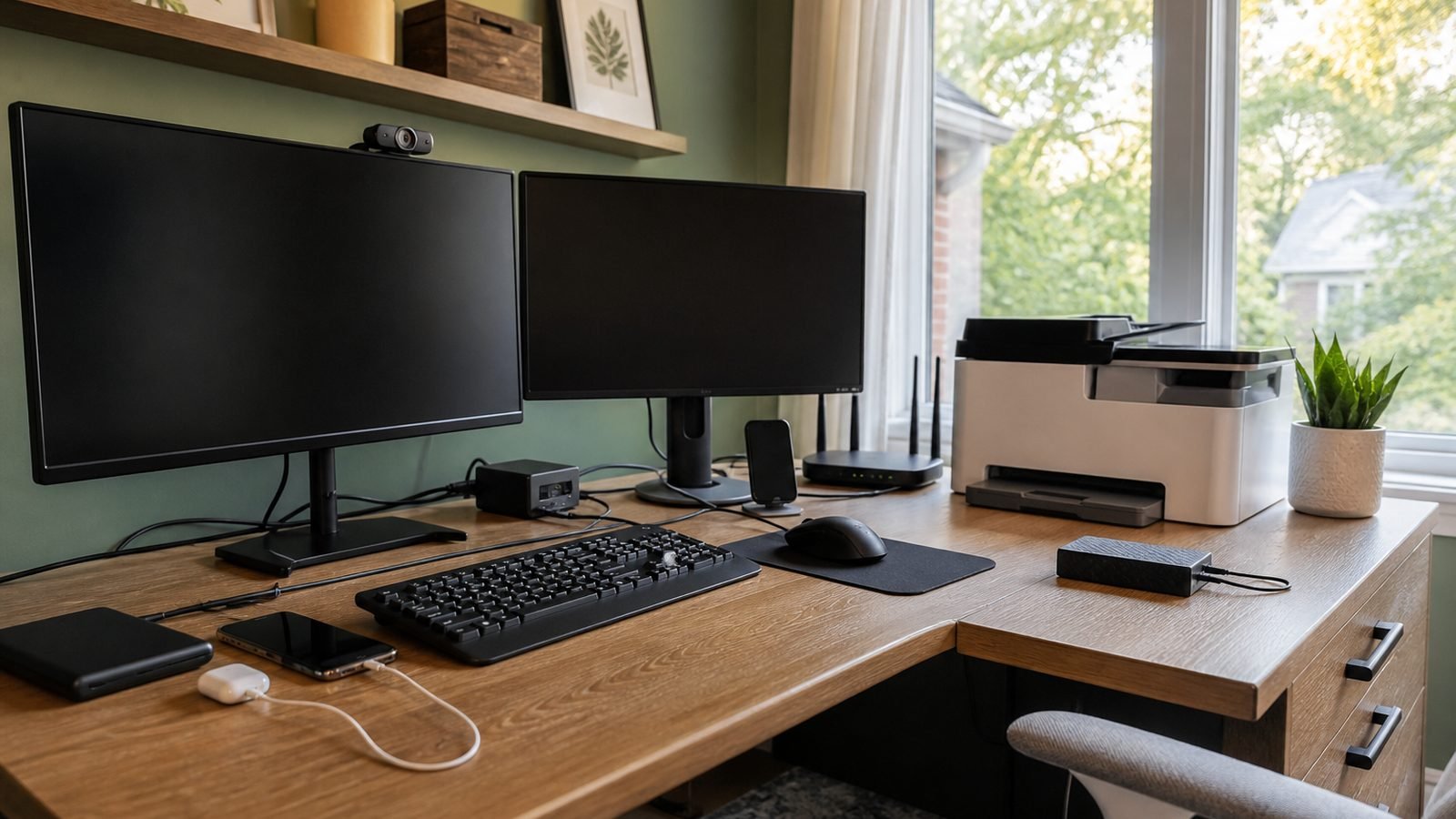
Summary: Phantom loads are the electricity devices use while apparently off, asleep, or waiting. Find them with a plug-in electricity meter rather than a nameplate guess. Protect files and equipment first, leave essential networking, backup, medical, and security devices powered as required, and group only safe accessories behind an appropriately rated switched strip.
Start with a safe power map
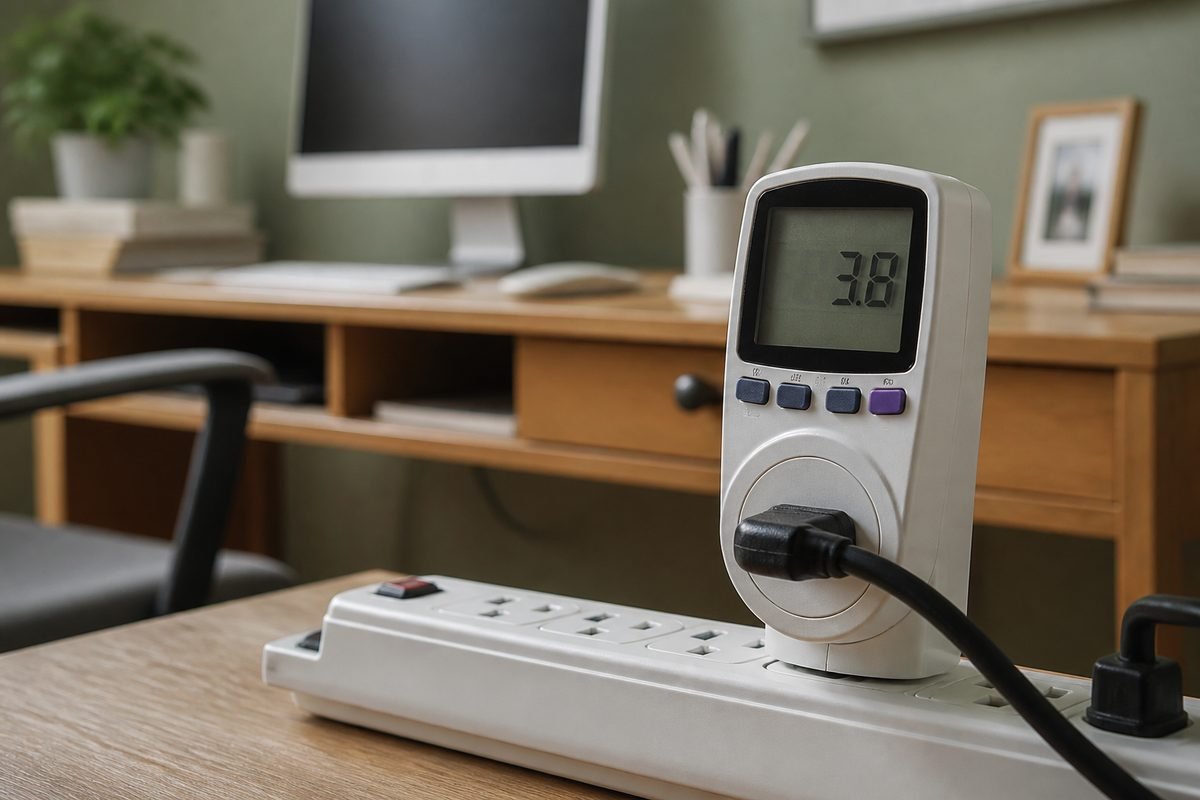
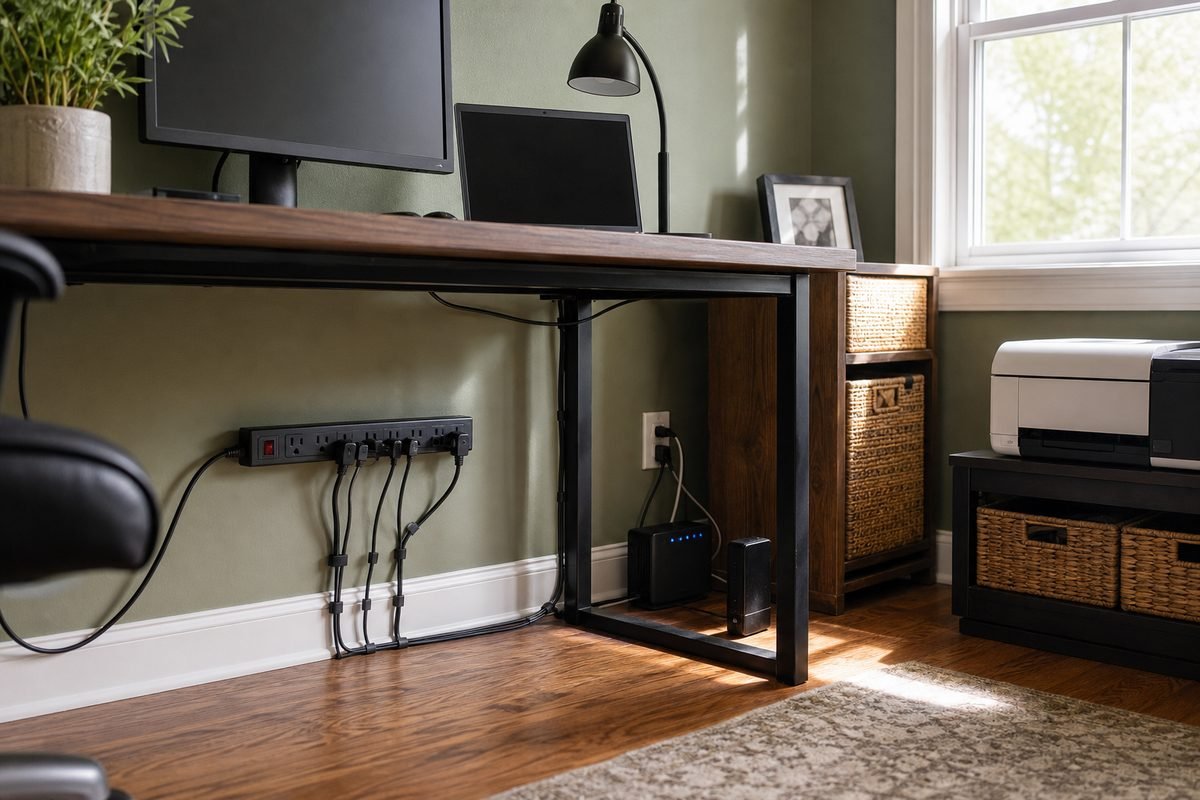
Before unplugging anything, trace every office cord to its outlet or power strip. Write the device name beside the receptacle: computer, monitor, dock, printer, speakers, lamp, shredder, charger, router, modem or optical network terminal, network switch, external drive, uninterruptible power supply, alarm hub, smart-home bridge, and any heating or cooling accessory. Include cords hidden behind furniture. Do not move heavy furniture alone or pull a cord to identify its plug.
Mark each item with one of three temporary labels: must stay on, may be scheduled, or candidate for full shutoff. If you do not know what a plug powers, leave it energized until you can identify it. The goal is not to make every reading zero. The goal is to remove unnecessary idle draw without losing internet service, corrupting storage, disabling a backup, missing security events, or making the office unreliable.
Record normal states
For each candidate, note what “off” means. A monitor may be asleep with an indicator light. A printer may be waiting on Wi-Fi. A laptop dock may remain warm after the computer leaves. Record whether the device is working, sleeping, software-shut-down, or switched off at its own button. These states can have different readings, and comparing unlike states produces a useless audit.
How to measure with a plug-in electricity meter
Use a listed plug-in electricity monitor designed for your receptacle voltage and the load you intend to measure. Read its manual and ratings. These meters sit between a wall receptacle and one corded device; they are not for hardwired equipment, damaged outlets, wet areas, high-load appliances beyond the meter’s rating, or improvised adapters.
- Save work and shut down safely. Close files, allow cloud sync to finish, eject removable storage where required, and use the operating system’s shut-down command before removing computer power.
- Inspect without disassembly. Do not use a loose, scorched, cracked, hot, or buzzing receptacle, plug, or power strip. Stop and arrange appropriate electrical evaluation.
- Plug the meter directly into the wall. Configure the display according to its manual. If it accepts an electricity rate, that setting affects cost estimates but not the watt reading.
- Connect one device. Return it to the exact state you want to test: awake, asleep, software-off, or device-button-off.
- Allow the reading to settle. Some electronics cycle, update, charge a battery, or run maintenance. Observe long enough to see whether watts stay steady or change. Use the meter’s accumulated energy mode over several normal hours or days for cycling devices, if the manual supports it.
- Write the result and state. For example: “monitor 1, asleep, indicator amber,” not merely “monitor.” Record the date because firmware and equipment changes can alter behavior.
- Restore the original connection. Verify that the device starts, network access returns where expected, and no settings were lost before moving to the next plug.
Understand watts versus energy
Watts show the rate of power use at that moment. Kilowatt-hours represent energy used over time. A cycling printer or charging dock cannot be described well by one instantaneous number. Let the meter accumulate usage through a representative idle period, then compare that measured behavior with the inconvenience and risk of disconnecting it. Do not invent annual savings by multiplying a brief, unstable reading.
What the nameplate cannot tell you
A power adapter’s printed input rating usually describes the maximum it is designed to accept, not its actual standby use. Two similar-looking adapters can behave differently. Measure the complete device-and-adapter combination, and do not assume that a large nameplate number is a large phantom load.
Classify each office load
Must stay on
Place equipment here when loss of power interrupts a required service, safety function, backup, or another person’s work. The internet gateway commonly belongs here, particularly when it supports phones, security, smart locks, monitoring, or overnight updates. A UPS should remain connected according to its instructions so its battery and protection functions operate. “Always on” does not mean “ignore forever”: review settings, firmware, ventilation, battery condition, and replacement guidance through the manufacturer, not a switched-strip shortcut.
May be scheduled
A printer, scanner, or network-attached accessory may fit this category if the manual permits power cycling and the household can tolerate startup time and missed remote access. Inkjet printers may perform maintenance cycles; repeatedly cutting their power at the strip can interrupt normal shutdown or affect maintenance behavior. Use the printer’s own power button and guidance. Schedule only after confirming that no one prints remotely and no automated task depends on it.
Candidate for full shutoff
Desk speakers, a second monitor, decorative lighting, a label maker, an unused charger, and a dock may be candidates after measurement. First verify that they hold no needed data, run no update, and require no charging. A switched strip works best for a stable group of accessories that always turns off together—not as a master switch for every device in the room.
Reduce safe-to-switch phantom loads
- Remove abandoned adapters. Identify the device first. Recycle unwanted electronics through an appropriate local program; do not keep an unlabeled adapter energized “just in case.”
- Enable built-in sleep settings. Set monitors and computers to sleep after a practical inactive period. Preserve required updates, remote access, and accessibility needs.
- Use normal software shutdown. A strip is not a substitute for shutting down a computer. Wait until drives and indicators show shutdown is complete.
- Create one accessory group. Connect only compatible low-power desk accessories to a listed switched strip whose electrical rating exceeds the connected load. Follow its instructions and keep it ventilated and accessible.
- Keep infrastructure separate. Put the router, modem, fiber terminal, UPS, security hub, backup drive with scheduled tasks, and other critical equipment on clearly labeled, unswitched connections.
- Write the shutdown order. Example: save and sync; eject required drives; shut down computer; turn off printer by its own button; wait for completion; switch off the monitor-speaker-dock strip.
- Write the startup order. Switch on accessories; allow the dock and monitors to initialize; start the computer; confirm storage and network connections before work.
Use smart plugs selectively
A smart plug also consumes power and adds an app, network connection, rating limit, and failure point. Use one only when scheduling or remote control solves a real problem and the connected device can safely be disconnected. Never place a critical router on a Wi-Fi plug that depends on that router unless you have a documented recovery plan; a lost connection can prevent you from turning the plug back on remotely.
Do not overload or daisy-chain strips
Check the strip’s voltage, current, wattage, grounding, and indoor-use requirements. Add the connected devices’ maximum demands for a conservative compatibility check, and follow the manufacturer. Do not plug one power strip into another, route cords under rugs, defeat a grounding pin, or use a strip with space heaters, portable air conditioners, or other high-load equipment unless the product instructions explicitly allow the exact use. A warm, damaged, loose, or discolored strip should be taken out of service.
Device-by-device decisions
- Desktop computer: Measure sleep and software-off states. Preserve updates, remote access, and backups. Shut down before cutting supply power.
- Laptop and USB-C dock: Check whether the dock charges the laptop or powers attached drives while you are away. Disconnecting it may leave the laptop uncharged the next morning.
- Monitors: Compare active, sleep, and button-off states. Group monitors on a strip only if they do not provide USB charging or docking functions you need overnight.
- External drives: Confirm backup schedules and safe-ejection requirements. Do not interrupt an active write or assume a dark indicator means no activity.
- Printer: Read its shutdown and maintenance instructions. Use its own power control before any permitted disconnection.
- Chargers: An empty charger may draw little or measurable power depending on design. Remove unused or damaged chargers, but keep required device charging in the routine.
- Speakers and subwoofer: Check for auto-standby. These are often easy strip candidates if no alarm or voice-assistant function depends on them.
- Desk lamp: A simple mechanical switch may fully disconnect the lamp; a touch, dimming, smart, or remote-controlled lamp may remain energized. Measure if uncertain.
- Router and network gear: Leave powered unless you understand all dependencies and manufacturer requirements. Reboots can interrupt calls, cameras, cloud backups, updates, and other residents.
- UPS: Do not place it on a routine switched strip. Follow its ventilation, self-test, battery, and replacement instructions.
Worked example: a shared two-person office
The office has two laptops, one dock, two monitors, speakers, a Wi-Fi printer, a router, a security hub, and a UPS. The household maps every plug before testing. They mark the router, security hub, and UPS “must stay on.” The printer is “may be scheduled” pending its manual. Monitors, dock, and speakers are candidates.
They meter each candidate in a defined idle state. They do not publish a universal savings claim because their readings apply only to their equipment and routine. The dock must remain on when charging a laptop overnight, so it cannot always join the shutdown group. The two monitors and speakers safely share a correctly rated switched strip. Their checklist says to shut down laptops, verify cloud sync and external-drive activity, turn the printer off using its own button when appropriate, then switch the accessory strip. A label warns everyone not to switch the adjacent network outlet.
Home-office phantom-load audit checklist
- Map every cord and identify unknown plugs before touching them.
- Separate network, backup, safety, medical, and security equipment.
- Use a properly rated plug-in electricity meter and its instructions.
- Record device name, operating state, watts, and measurement period.
- Use accumulated energy for equipment that cycles.
- Shut down computers and storage safely before removing power.
- Use listed, correctly rated strips; never daisy-chain them.
- Test the written shutdown and startup sequence on a normal workday.
- Repeat the audit after adding a monitor, dock, printer, or other device.
Pair the office routine with a 30-minute weekly home reset: the reset can remove abandoned chargers and route cords, while electrical measurements remain a separate, unhurried task.
Frequently asked questions
Can I measure a whole power strip at once?
Only if the meter and strip instructions permit the connection and the total load is within every rating. Individual measurements are more useful at first because they identify which device causes the reading. Never use an arrangement that creates a daisy chain.
Should I unplug my router overnight?
Not as a default phantom-load tactic. It may support phones, security, backups, updates, and other household members. Leave it on unless you have verified every dependency and have a reliable restart plan.
Is a warm charger wasting power?
Warmth can indicate use, charging, or a problem, but touch is not a measurement. Unplug and stop using a charger that is unusually hot, damaged, buzzing, discolored, or smells abnormal, and follow manufacturer guidance.
Will a smart strip solve everything automatically?
No. Control outlets can switch the wrong equipment, and some devices need orderly shutdown or continuous power. Build and test the device groups first.
How often should I repeat the audit?
Recheck when equipment or work habits change, after firmware or settings changes that matter, or when an unexplained idle reading appears. There is no benefit in repeatedly measuring an unchanged, understood setup.
Conclusion
A useful phantom-load audit is selective. Map the plugs, protect essential services, measure a defined idle state with an appropriate outlet meter, and switch only devices that can safely lose power. The best result is not a dramatic claim—it is a reliable office with fewer unnecessary energized accessories and a shutdown sequence every user can follow.